
New in AltoSignal 4.0
Your spa, live, on every screen.
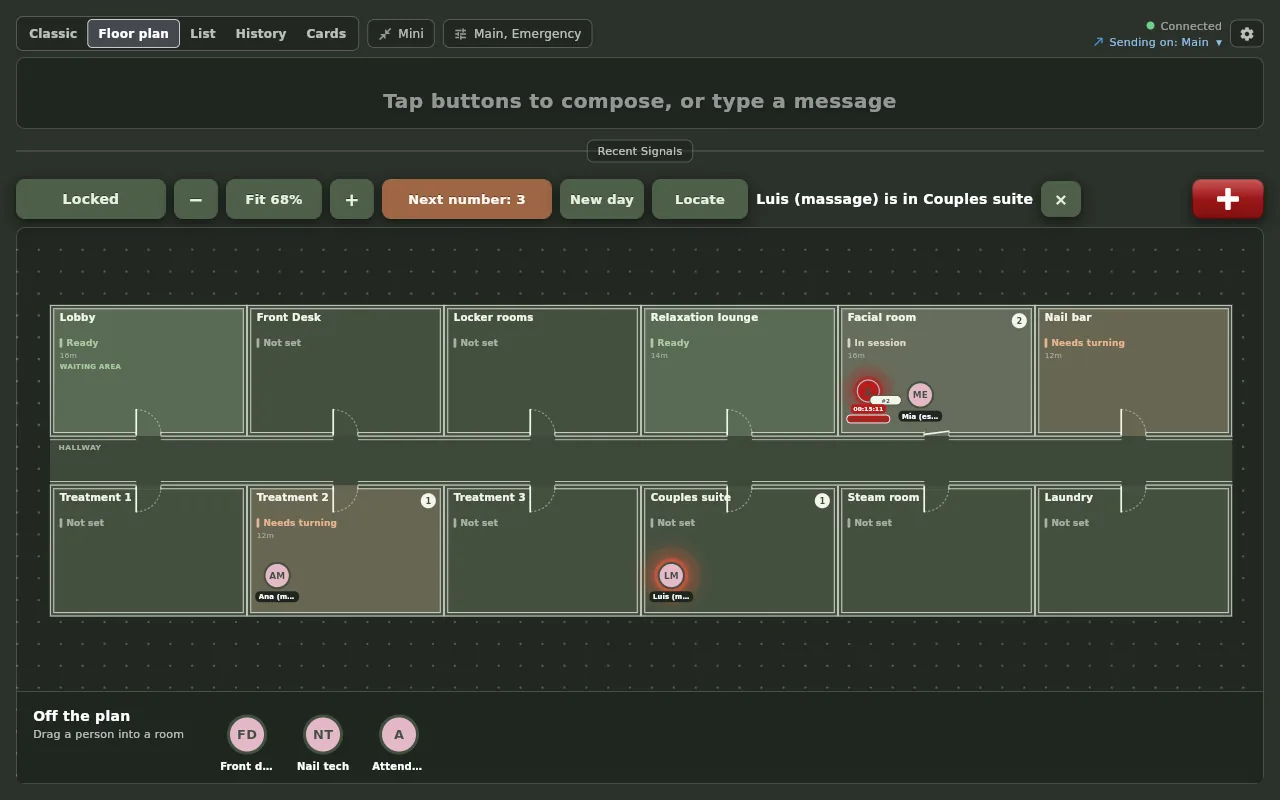
Version 4.0 draws your treatment rooms as a floor plan and puts every guest and every therapist in them. Take a number at reception, move the guest into a room, watch their clock and their state, and read the whole visit back afterwards. The board you already use is one tap away.
Every screen and clip below is a real capture from a demo day spa: a Fire HD 10 on the wall of a treatment room beside the desktop app at reception, the same app on Windows, Mac and Linux, both in Spa Dim. Nothing is a mockup. 4.0 is live on every platform: the browser app, the Mac and Linux downloads, the App Store, Google Play, the Amazon Appstore and the Microsoft Store.
Eight things 4.0 does, on the real screens.
Nothing here is a mockup. The captures and clips are one afternoon in a demo day spa: a Fire HD 10 on the wall of a treatment room, in Spa Dim, beside the desktop app at reception. Real time, no cuts inside a clip.
01 · Five views
One screen, five ways to see the spa.
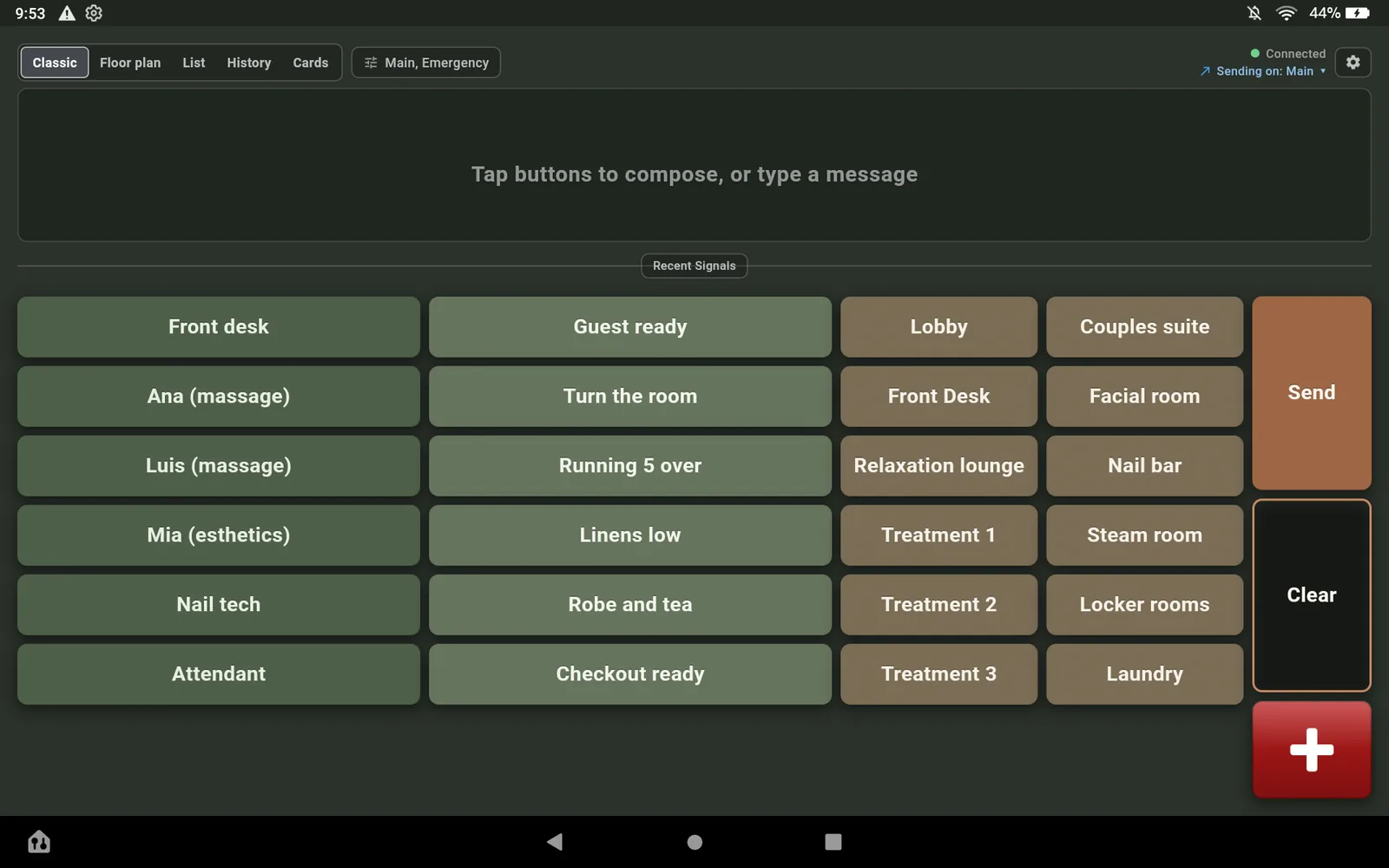
The toggle at the top left of the main screen switches between Classic, Floor plan, List, History and Cards. Each screen remembers its own choice, so the treatment-room tablet can live on the plan while reception keeps the classic buttons.
The old Live button is gone: what it opened is now the History view. Every button, channel and quick reply you set up is kept.

02 · The floor plan
Your rooms, drawn as they are, with everyone in them.
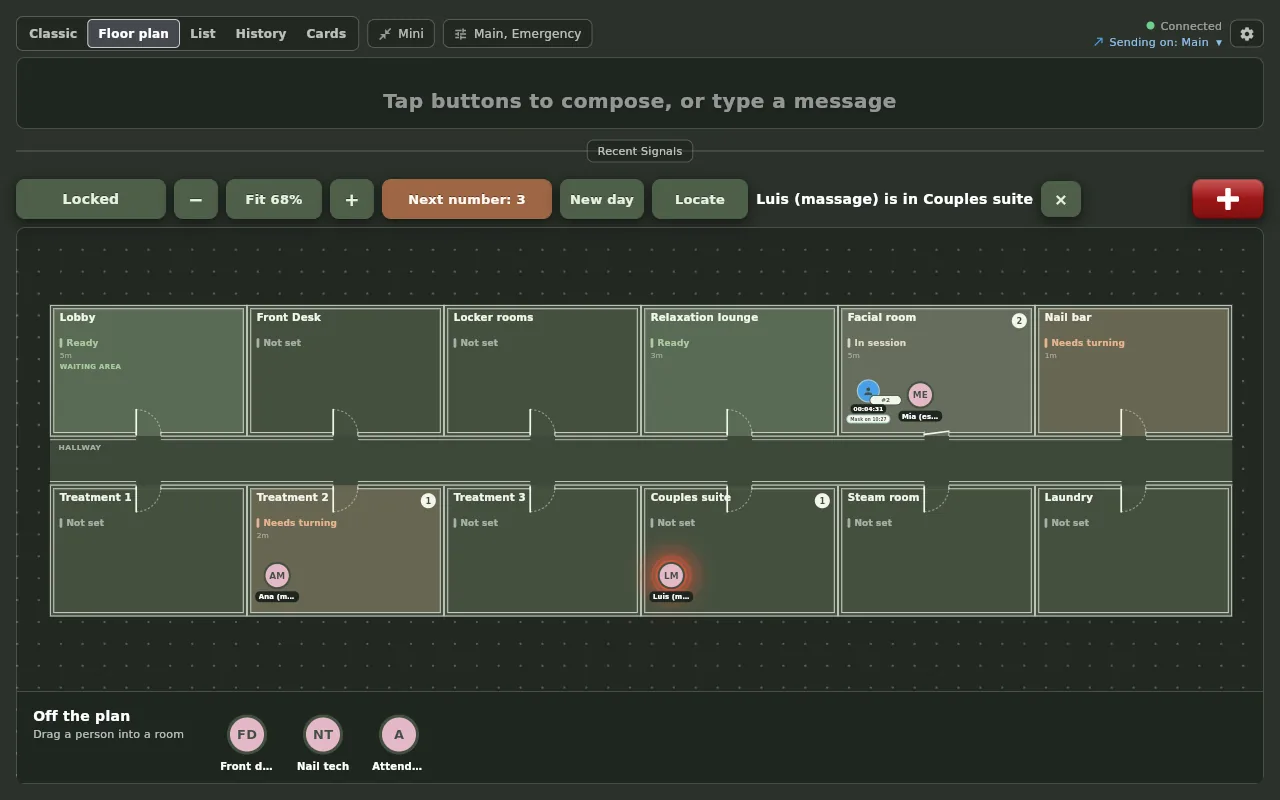
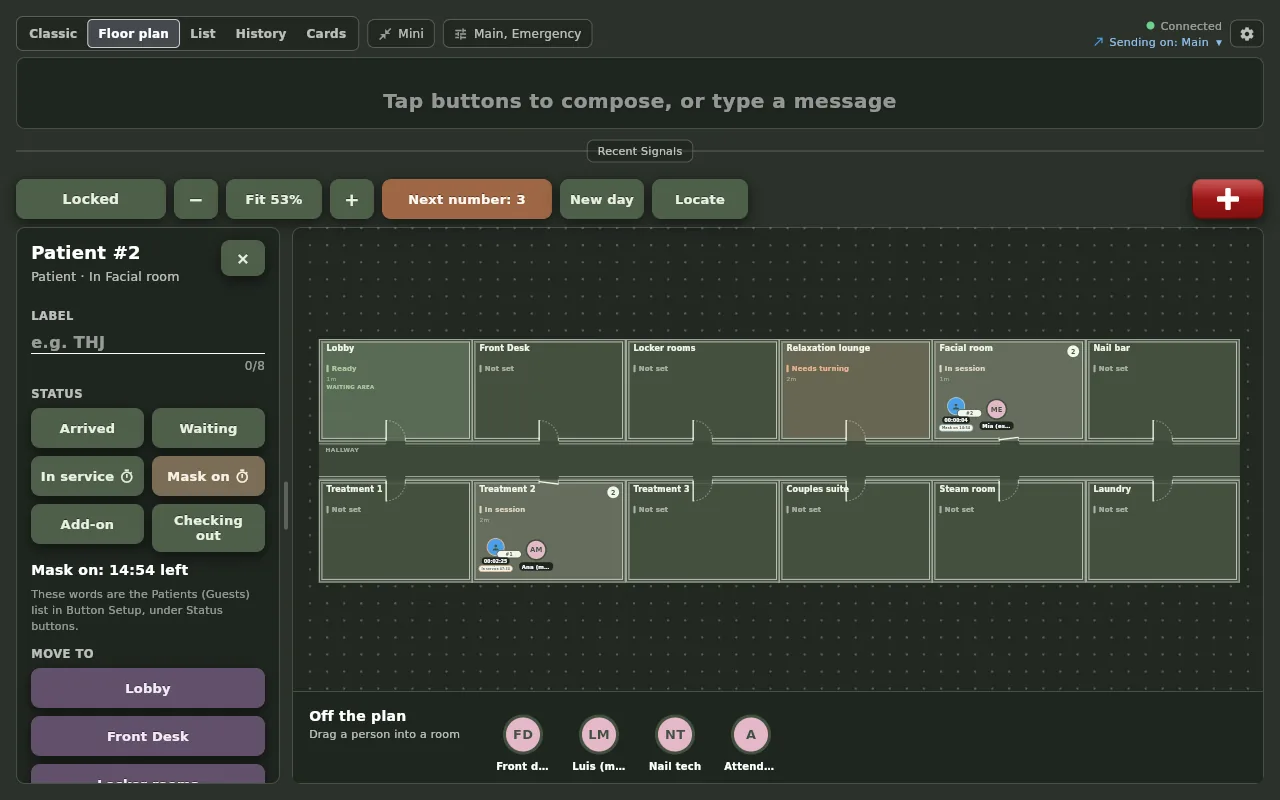
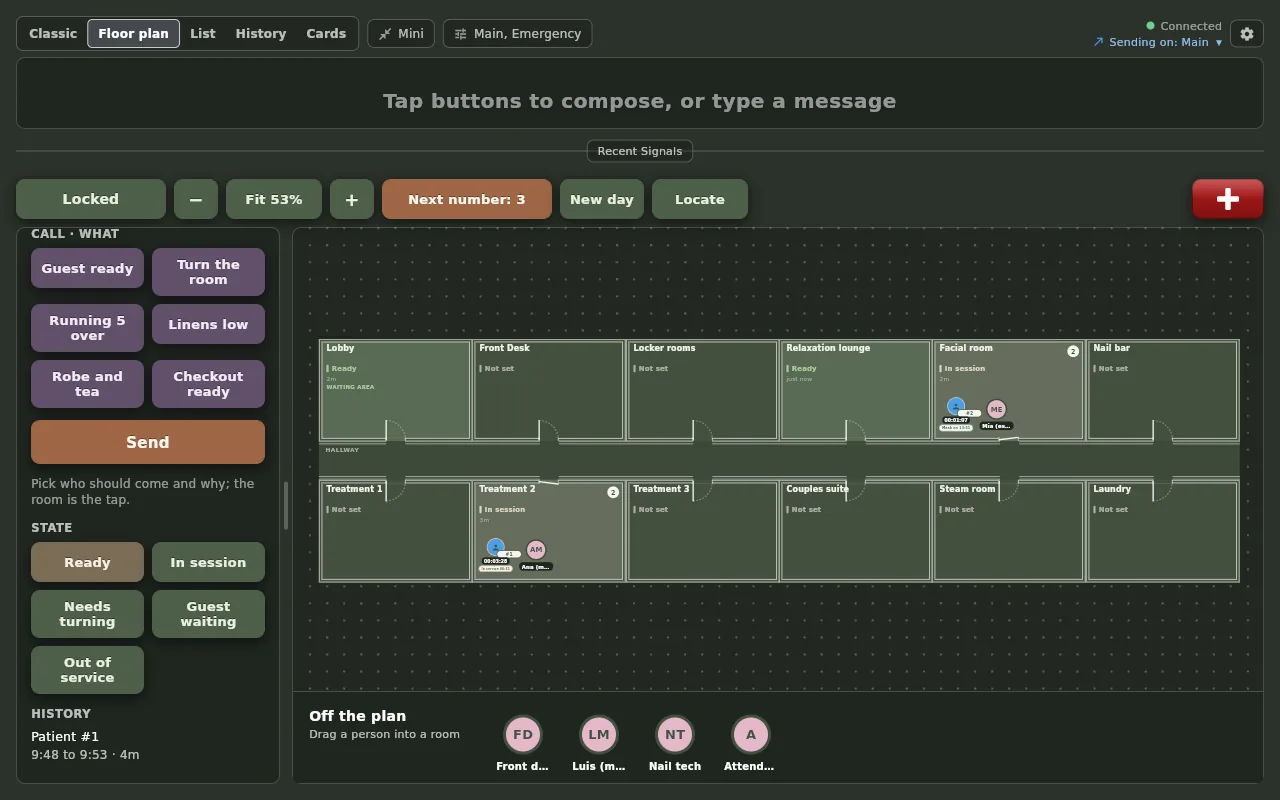
Rooms sit wall to wall around a hallway, each with its state, its count and the people inside. A guest is an icon with a running clock and a pill that says their state in words. A therapist is an icon with their initials.
Auto layout builds the first plan from your Where buttons. Floor design lets you move walls and doors, mark the lounge as the waiting area and pick the colors.
03 · Take a number
A guest is a number, not a name.
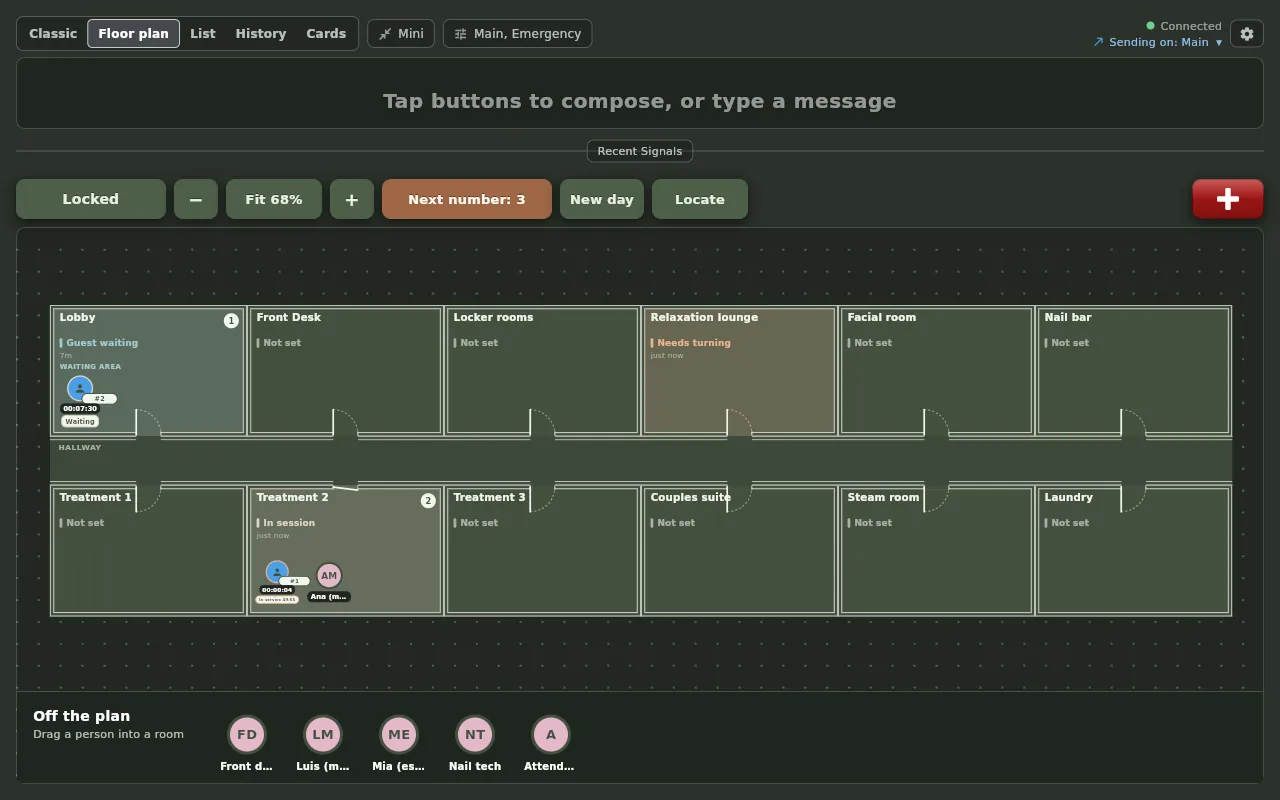
Press Next number and the next guest appears in the Lobby, Waiting, with a clock running. Robe and tea tells the attendant a guest is changing. When the room is ready, Guest ready goes to the therapist, who collects the guest from the lounge.
Move the guest into the treatment room with the therapist and In service starts its 50 minutes on its own. Check out ends the visit.
04 · States and timers
Every guest has a state, and some states have a clock.
Waiting and In service set themselves: a guest in the lounge is Waiting, a guest in a room with a therapist is In service. Mask on is one tap in the pane and counts fifteen minutes, so the esthetician can step out.
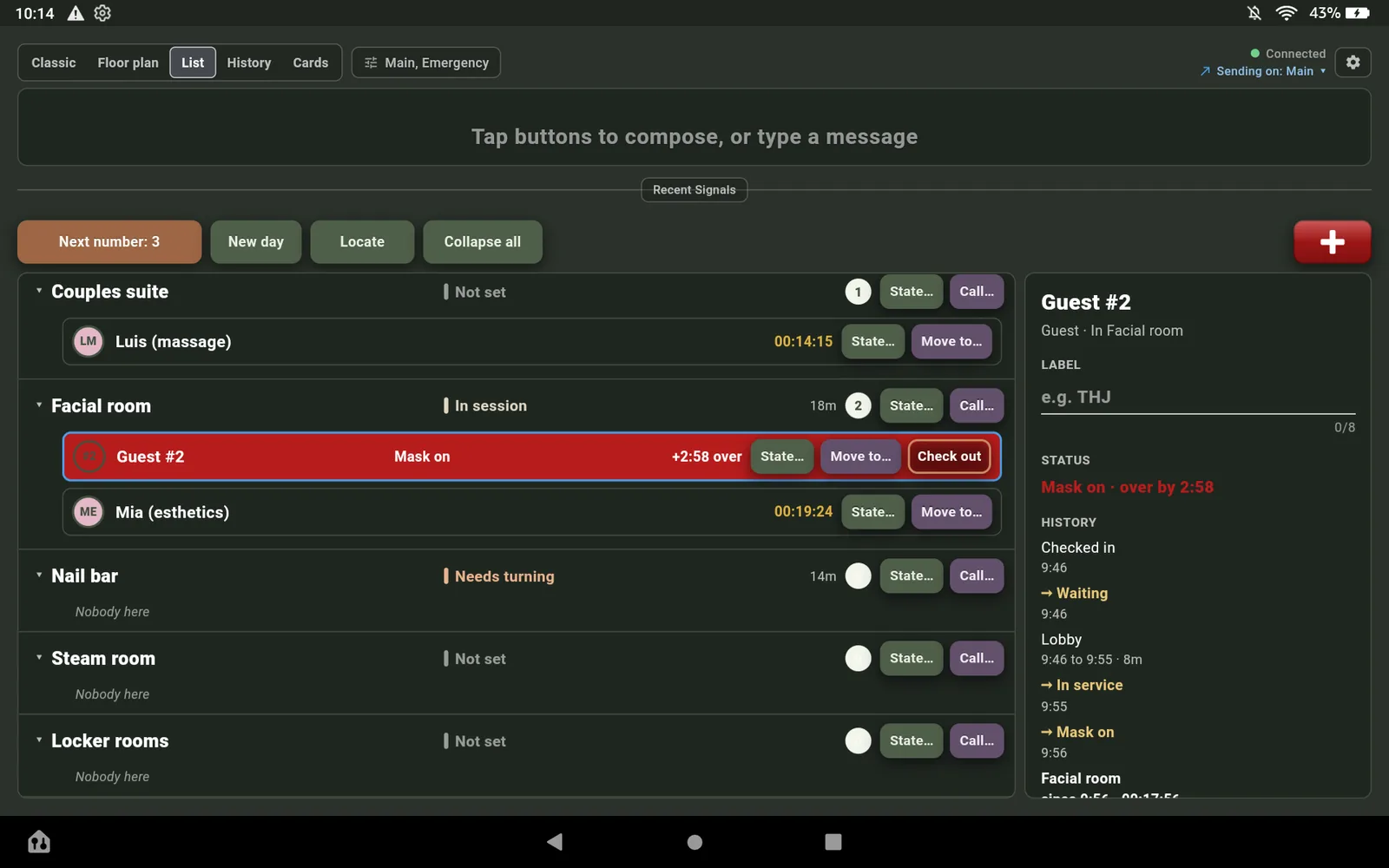
When a timer runs out the icon turns the emergency red and ripples from the center on every screen, and the row on the list turns red. Nobody has to remember to check.
05 · The room turn
Turn the room without walking the hall.
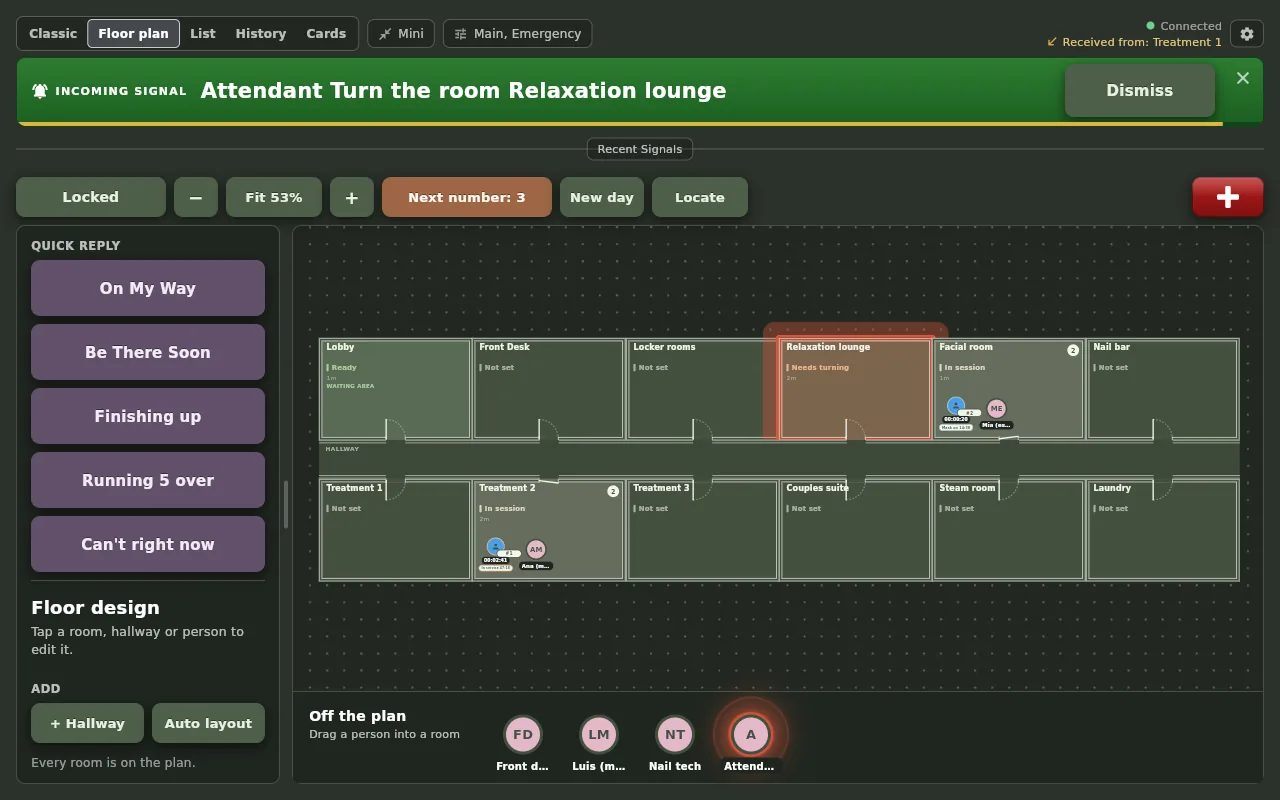
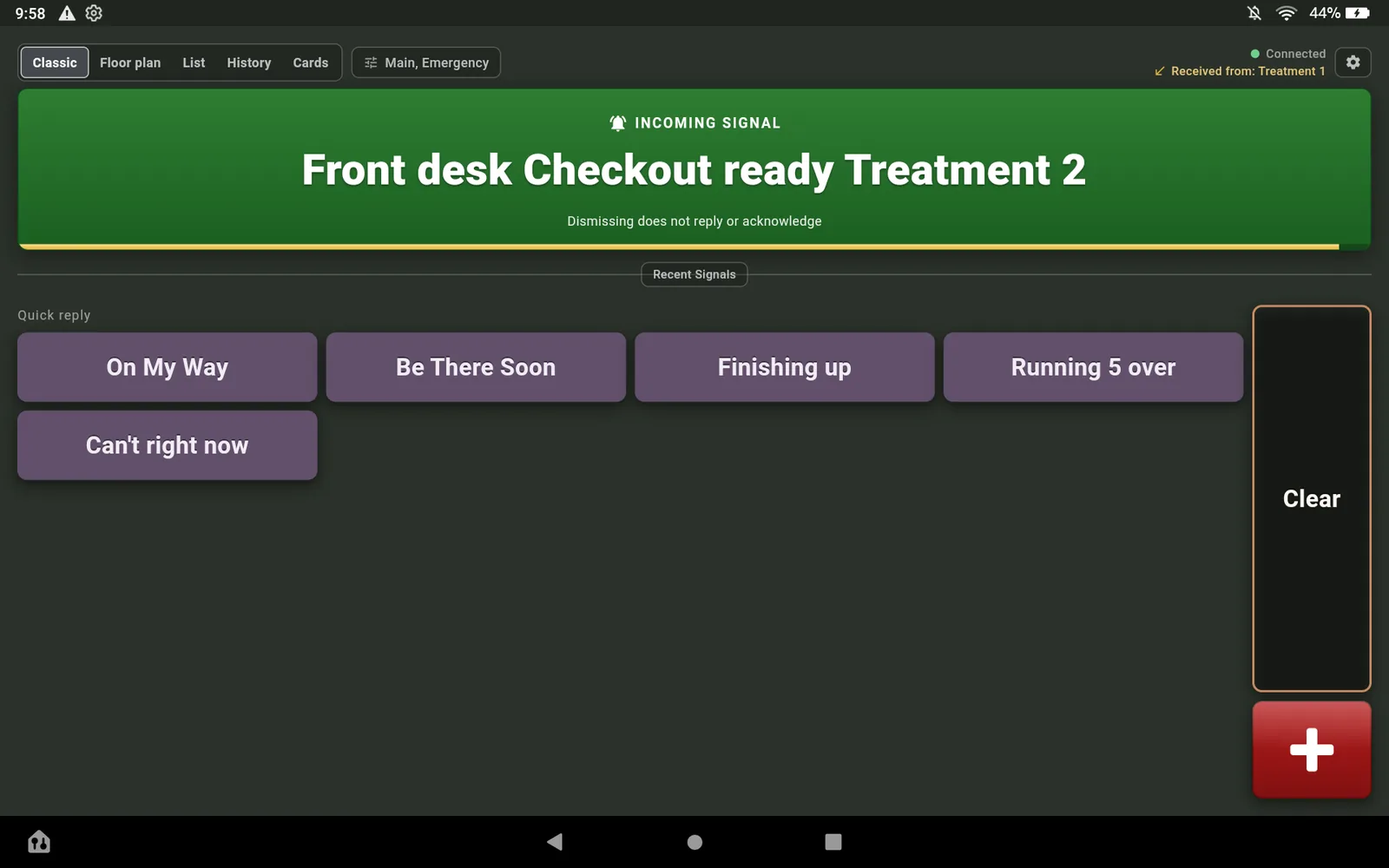
When the guest leaves, the therapist sends Turn the room to housekeeping from the tablet. The attendant sets the room to Ready when it is done, and every card and every plan turns green the same second.
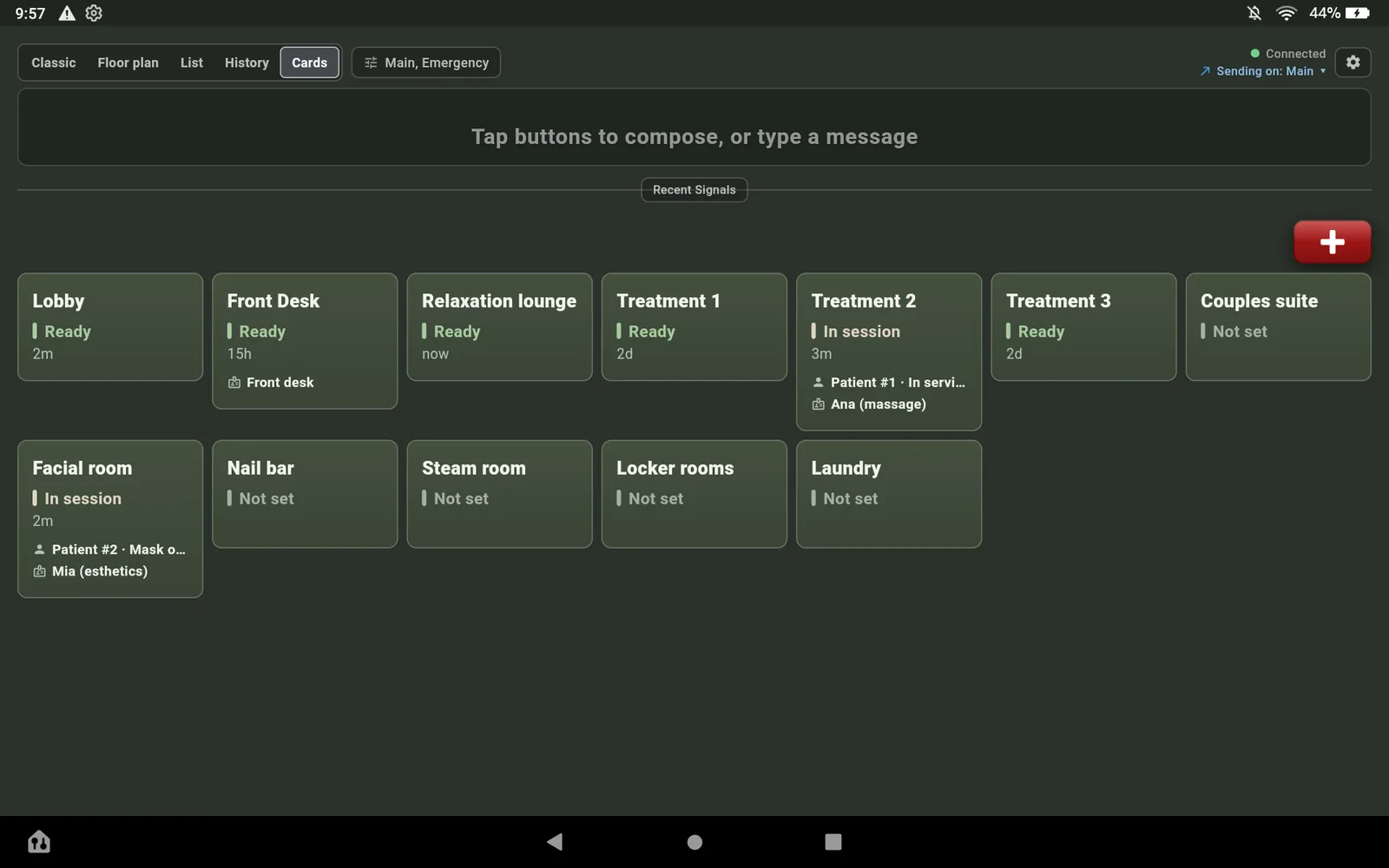
Room states from 3.3 are still here, on the room's own pane: Ready, In session, Needs turning, Guest waiting, Out of service, each with the time since.
06 · History
The whole visit, readable afterwards.
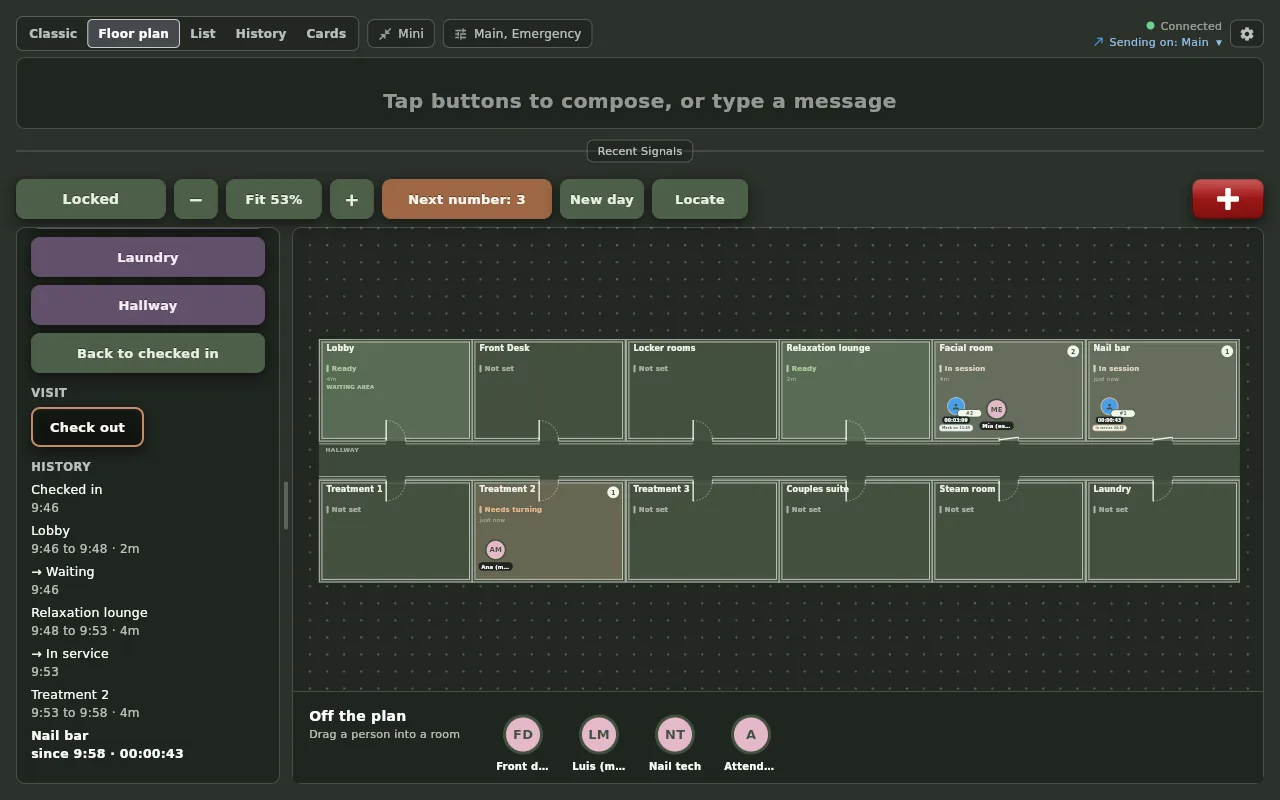
Tap any guest and the pane lists their day: when they arrived, every room with the times in and out, every state change, and the clock still running on the current room.
Your team has the same timeline, and so does every room: who is here now, and who was here today, with times. It is the minutes-between-guests number without anyone writing it down.
07 · Your team on the plan
The room is the tap. Pick who and why.
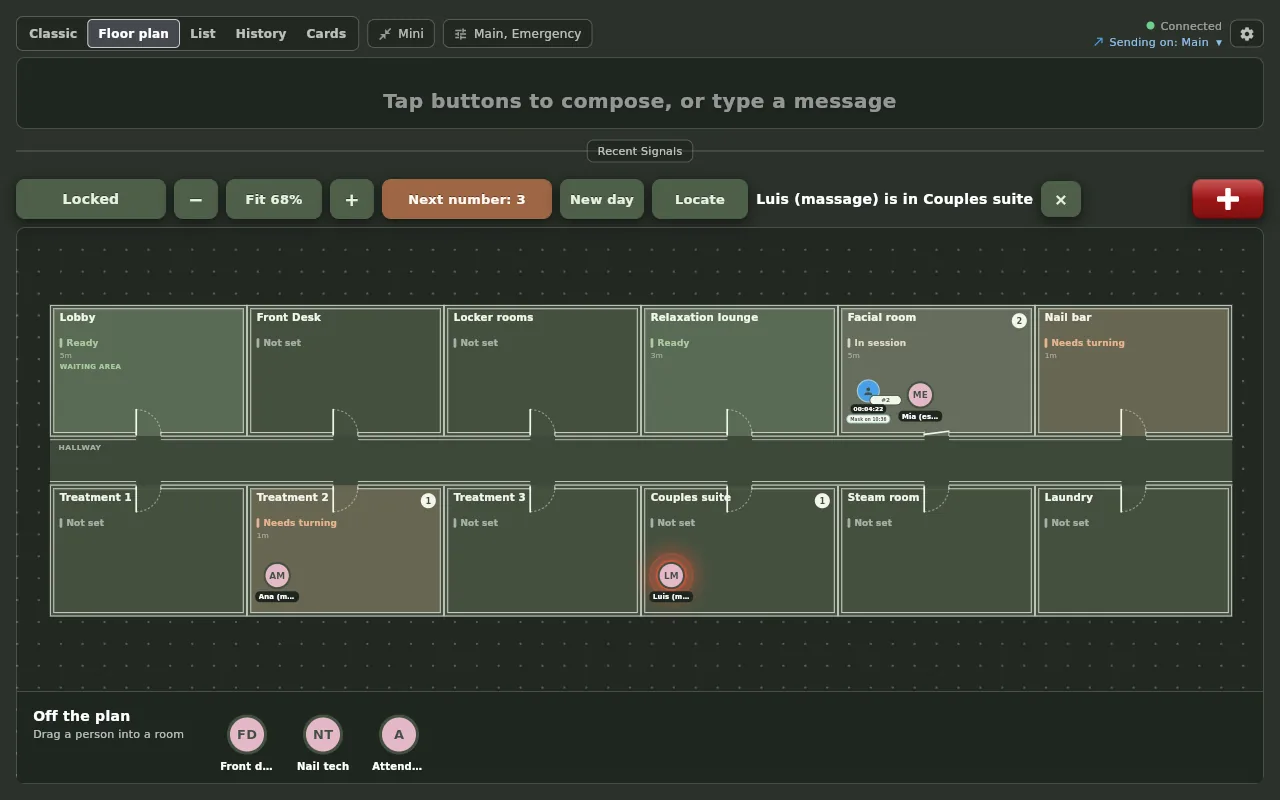
Every Who button is a person on the plan. Move Luis into the Couples suite and the icon moves, the room's count changes, and any guest in that room becomes In service. Each person has a status from your People list: Free, With a guest, On break.
Tap a room and its pane opens with the call ready to compose: the room is filled in, so a signal needs only who and what. Locate finds anyone in one tap and glows their icon.
08 · The list, and Setup
Many rooms, small screen, no dragging.
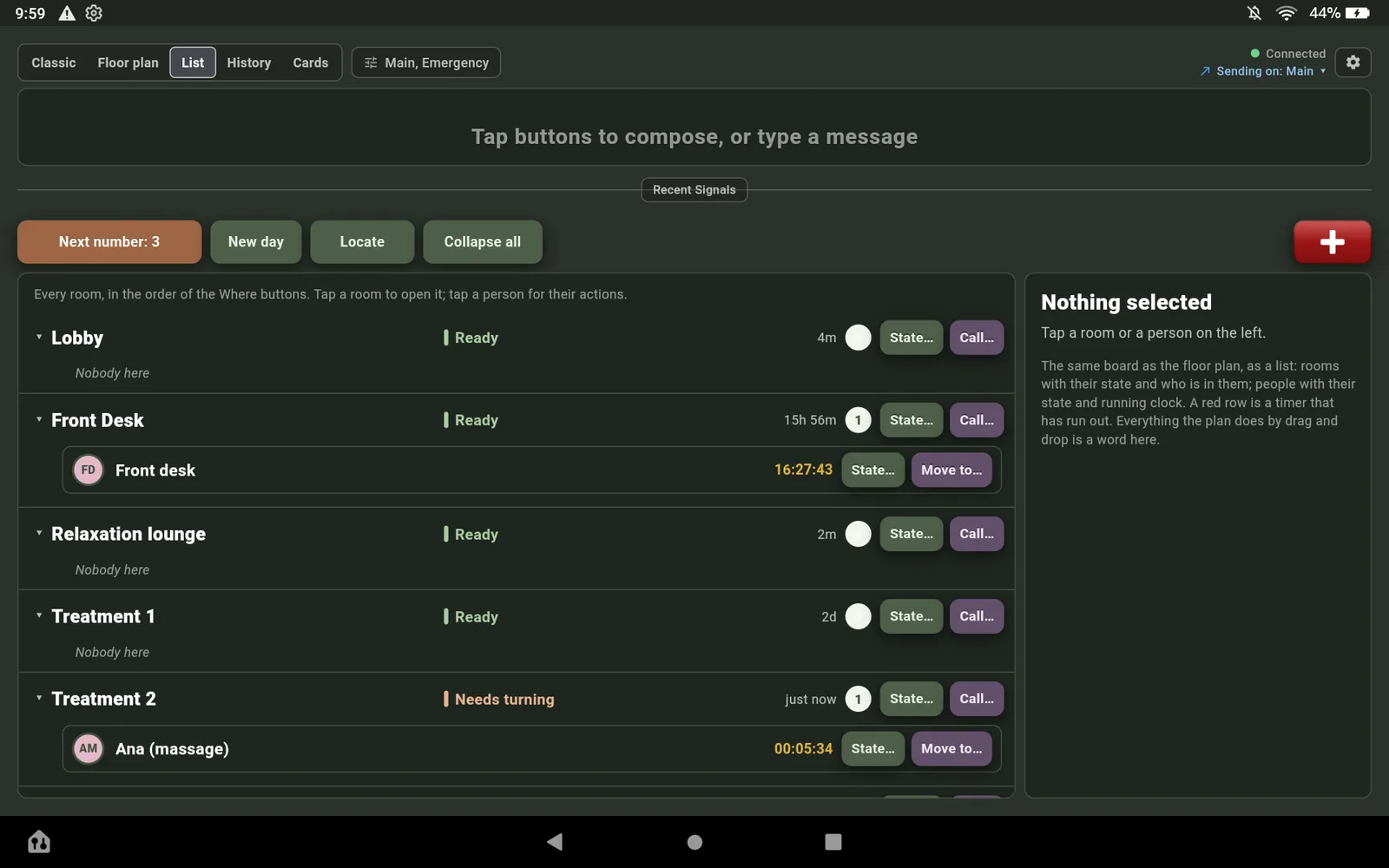
The List view is the same board as text: every room a row with its state, its age and a count, and the people under it with their state and clock. State, Call, Move to and Check out sit on the row.
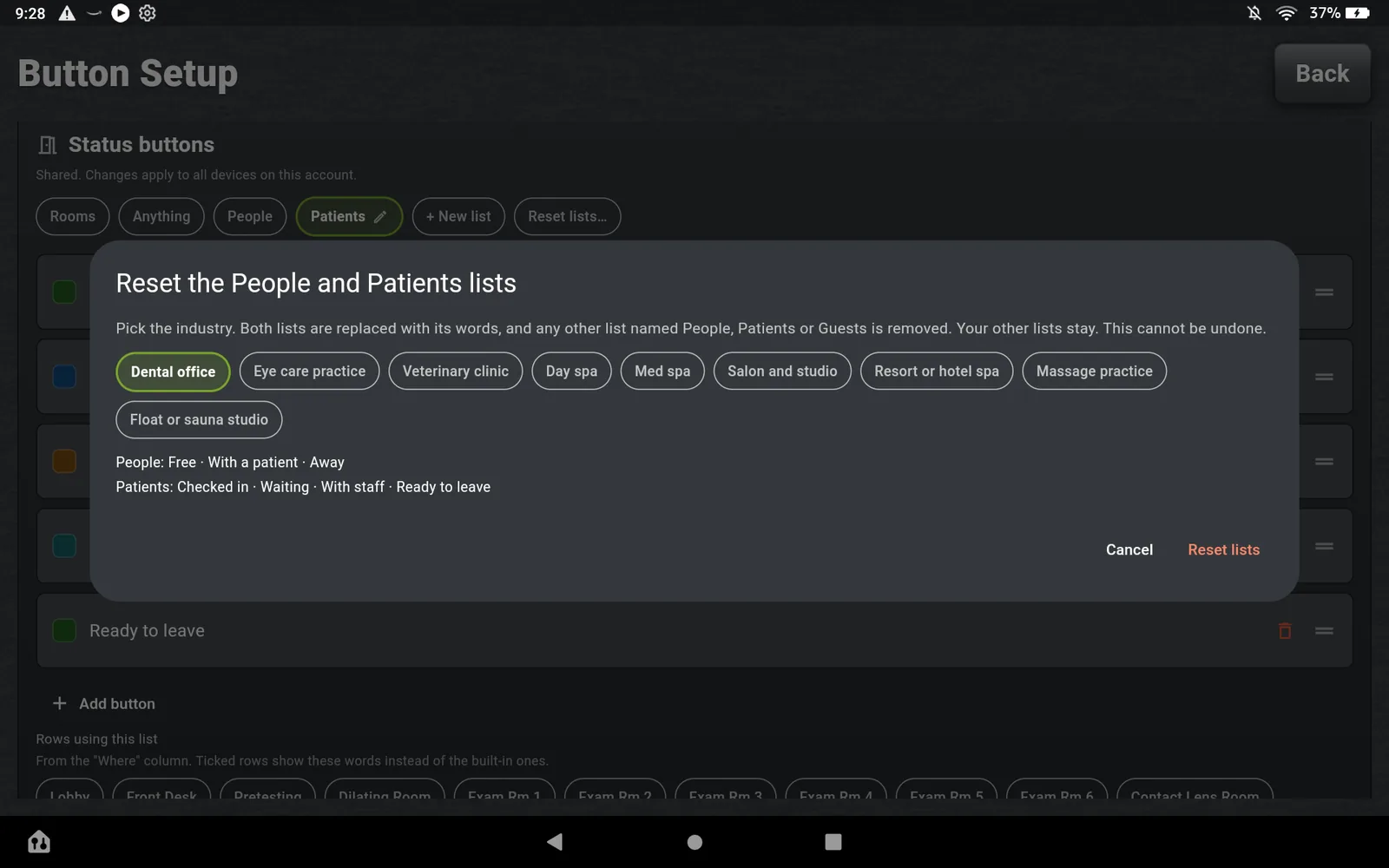
Under Status buttons in Setup, on the Rooms & staff tab, your account has three lists: Rooms, People and Guests. Any guest state can carry a timer. Every delete asks first, and Reset lists restores a spa preset in one tap.
New in 4.3
A floor plan drawn from a photo of your own, a spa set up from a sentence, and a view of how the day went.
Set up in a sentence
Describe your spa in your own words, or answer three questions, and get your buttons, treatment rooms, room states and a floor plan to approve before anything is saved.
Your floor plan from a photo
Take a picture of your fire escape plan or a sketch. The rooms are drawn for you and matched to your own, and you choose to keep your rooms, add the new ones or replace them.
Activity at a glance
Owners and admins see signals per day, how fast they are answered by hour, the busiest rooms and people, and a short weekly summary, in the app and on the account page.
A simpler Setup
Four tabs instead of one long screen, a box at the top that answers how to do something from our guides, and a simple mode that keeps a new screen to buttons and room cards.
New in 4.2.1
Timers on the rooms themselves, for the tub, the sauna and the salt room, and room cards your front desk can run the day from.
Timers on rooms
Tap the tub’s card and pick a length, from 5 minutes to an hour, or any minutes and seconds. The card fills as the time runs down and glows red when it is up. Choose your own list of lengths in Setup.
Room cards that do the work
Tap a room card to see who is in it, add the next guest, move one to another room, rename them, set their status or take them off the board. Remove all clears the room in one tap.
Reception empties itself
When the front desk sends “Client ready” for the Lobby and the therapist answers On My Way, the guest who has waited longest leaves the Lobby on every screen, with Undo for a few seconds.
Cards you can read at a glance
Every room card is the same size and says how many guests are in the room, so a break-room monitor shows the whole spa without scrolling.
New in 4.2
The floor plan keeps itself up to date from the pages your front desk already sends. Also new: a complete sample spa in one press, guest lists of up to eight states, and lists that fit a phone.
The plan follows the pages
Page “Ana, Client ready, Treatment 2” and when Ana answers On My Way, the floor plan moves Ana into Treatment 2 on every screen. The front desk never drags anyone.
Typed counts too
A typed page that names one person and one room moves them the same way, and so does a typed “omw” right after a page arrives.
Replies in your words
Write a reply your own way and AltoSignal understands whether it means on my way. Setup marks the replies that move people; untick any you want to stay put.
Last seen, not guessed
Someone nothing has placed for an hour fades on the plan, and Locate says “last seen in the salt room”, so the plan never pretends to know. Guests never fade.
New in 4.1
Built from a day spa owner’s own list of asks, on top of everything 4.0 does. Views also swipe and switch instantly now, the view buttons are finger-sized, and each person’s own tone plays on every screen, not only the one that sent it.
Who’s in today
Mark each person In, Lunch, Out today or Away until a date, with reasons you choose. Every screen hears “Ana is in” on arrival, and anyone at lunch or out leaves their room on the plan. A presence board, not a time clock.
History beside any view
Show history opens every message in a side pane next to the plan, the list or the board, on a computer or a larger tablet turned sideways. Drag it wider and reply from it.
Tell them
Move Ana from the break room into Treatment 2 and, for a few seconds, a bar offers to tell her. One tap calls Ana to the room with her own tone. Ignore it and the move stays silent.
Your whole spa in one tap
Starter buttons now set up the buttons, the floor plan and the Spa theme together, with no limit on rooms. The Day spa set speaks a real day spa’s words: client ready, the tranquil area, the salt room, and a 45-minute timer for the sauna, salt room or tub.
Also in 4.0
Acknowledge on a reply
An incoming quick reply such as On My Way shows an Acknowledge button beside it. One tap acknowledges and clears the reply on every screen.
Quick replies are optional
A checkbox in Setup, on the This device only tab, shows or hides the quick reply buttons per device. They are on by default.
Older screens keep working
A device still on 3.5 ignores the plan and keeps paging alongside updated ones. Update it when you can, from the store it came from.
Questions about 4.0
How do I take a number for a guest?
On the Floor plan or List view, press Next number. The guest appears in your lounge as the next number, Waiting, with a clock running. Tap the guest to add a short label such as initials if you want one. Nothing about the guest is stored except the number, the label you typed, the rooms and the times.
How do I move a guest to a treatment room?
On the Floor plan, drag the guest into the room. On the List, press Move to on the guest's row and pick the room. Either way every screen on the account sees the move, the room's count changes, and the guest's history records the room and the time. Check out ends the visit.
Where do I set the guest states and their timers?
In Setup, on the Rooms & staff tab, under Status buttons. Your account has three lists: Rooms, People and Guests. Each state in the Guests list can carry a timer, and a state with a timer counts down on the guest's pill and turns red when it runs out. Reset lists offers a spa preset if a list gets messy.
What does New day do?
It clears every guest and their history on every device on the account and sets the next number back to 1. Your team stays where they are. It asks for confirmation first and cannot be undone. Once user roles ship, New day will be limited to the roles you choose.
Why did the Live button disappear?
It became a view. The board that used to open from the Live button is now the History view in the toggle at the top left of the main screen, beside Classic, Floor plan, List and Cards. Nothing was removed, and the toggle remembers your choice per device.
Can we turn local network delivery off?
Yes, per screen or for the whole spa, and the reason the switch exists is a story we heard from the IT manager of a 26-location eye care group. The paging system he had inherited flooded the office network with multicast traffic and knocked out the VoIP phones he had just installed; he moved it to its own VLAN and the traffic still leaked. The local path is a small discovery beacon and direct encrypted connections on one port, so there is nothing to flood. When a network policy wants none of it, two switches on the Account screen turn it off: for one screen, or for every device on the account. Signals still arrive over the internet either way.